How do I archive a product instead of deleting it?
Archive a product you no longer sell. It leaves your store at once, its records stay, and Restore brings it back.
This guide is for store owners. Not you? Supplier guidesShopper guides
TL;DR: in My Products, tick the product and choose Archive (keep the records, stop selling). It leaves your store straight away. Its photos, costs, stock, price history and orders stay. Find it under the Archived filter, and press Restore to sell it again.
What does archiving do?
An archived product:
- is off sale in every store you run, and gone from your shop: a shopper who opens its old link sees "Page not found";
- leaves your live list in My Products;
- keeps everything: photos, costs, stock, price history, orders, the maker's SKU;
- shows the date it was archived and who archived it.
Nothing is deleted. One click puts it back.
When should I archive, and when remove?
| You want to… | Use |
|---|---|
| Stop selling something you have sold before (discontinued, end of range) | Archive |
| Keep the records for later (orders, what it cost, who made it) | Archive |
| Take a test product or a mistake that never sold off your store | Remove from store |
| Take a catalogue product (one from btab's catalogue) off your store | Remove from store |
A product of your own that has been on an order, or that one of your collections or bundles uses, can only be archived. If you try to remove it, My Products says: "This product has been sold (or a collection or bundle uses it): archive it instead of deleting it."
How do I archive one product, or many?
- Open Products → My Products.
- Tick the product. To archive several, tick each one, or tick the box at the top of the list.
- In the selection panel, choose Archive (keep the records, stop selling).
The list says "1 product archived" (or how many). The products are off every store at once.
Changed your mind? Press Undo edit in the bar at the top of the list. It puts them back exactly as they were.
Only your own products can be archived, and only by a login that may change products.
Where do archived products go?
Press the Archived filter, next to All. The list then shows only archived products, with two extra columns:
- Archived on: the day it was archived, for example "23 Oct 2026";
- Archived by: the login that did it. A product your maker's stock feed stopped listing says the feed's name, for example "CTR feed"; one your Shopify export marked as archived says "shop sheet".
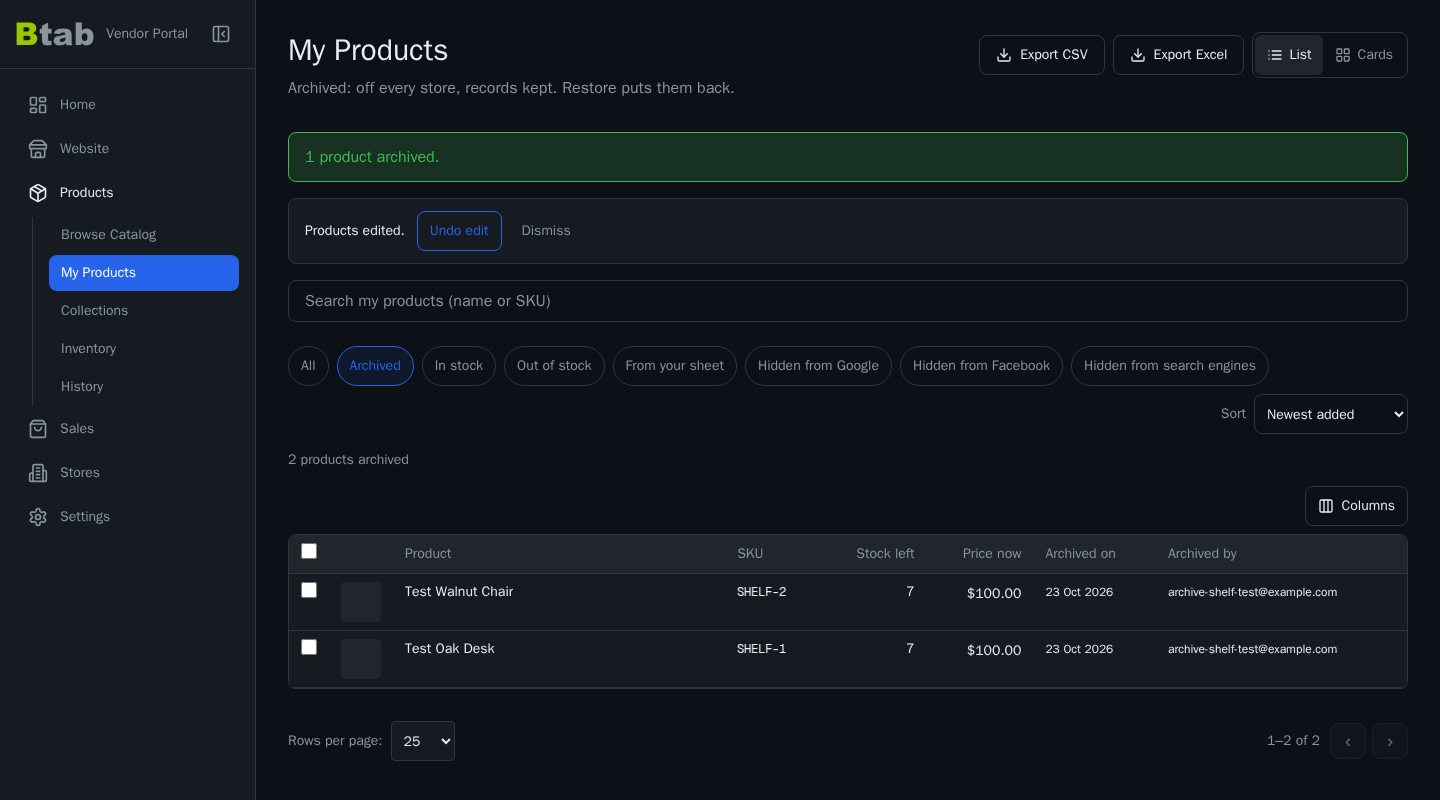
Archived products are not in your live list, your shop or your export. To export them, export from the Archived filter: you get the archived products only.
How do I bring a product back?
- Press Archived in My Products.
- Tick the product (or several).
- Choose Restore to the stores it was in.
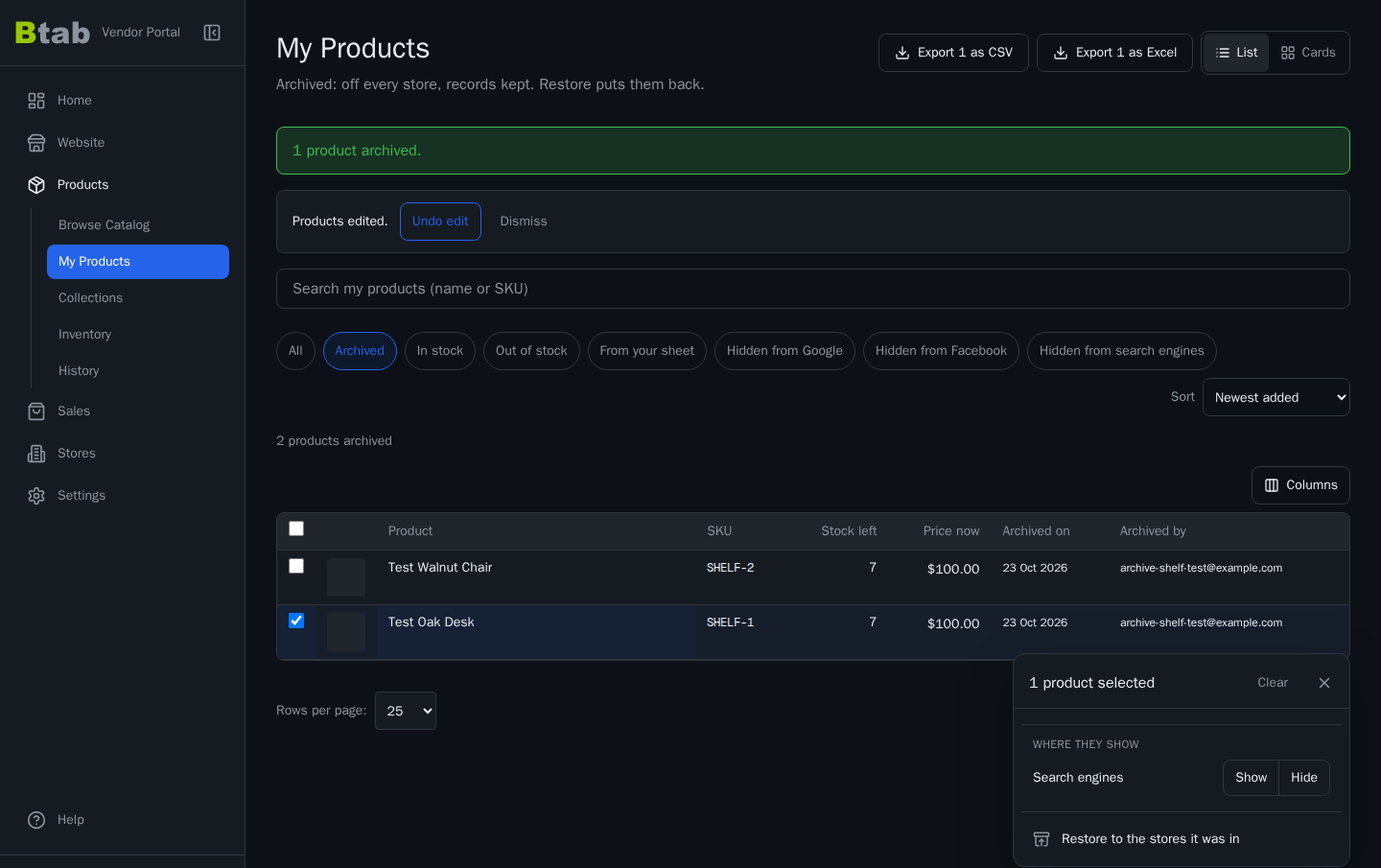
It is on sale again in those stores, with its old price, photos and stock. If you run more than one store, the panel also offers Restore to only for each store. A store that never sold the product is not added by a restore; add it there from My Products as usual.
A product your maker's feed archived comes back by itself when the feed lists it again.
Why never delete?
Your orders, your margin reports and your price history all point at the product. Deleting it would leave holes in them. Archiving keeps every record and costs you nothing: the product is just out of the way.
What this means for you
When a product is discontinued, archive it instead of deleting it. Your live list stays clean, your records stay whole, and the product is one click from selling again.