How do I set up my store policies?
Website → Policies holds your Delivery, Returns, Terms & Conditions and Privacy pages. Start each from BTAB's template, filled in from your store's details, then edit it with a live preview of how it looks on your store. It saves as you type.
This guide is for store owners. Not you? Supplier guides
TL;DR: Go to Website → Policies. Pick a page (Delivery, Returns, Terms & Conditions or Privacy Policy), click Start from template, check the preview and click Use this. Then edit it however you like. It saves as you type, and the preview beside it shows exactly how it will look on your store.
Where are my policies?
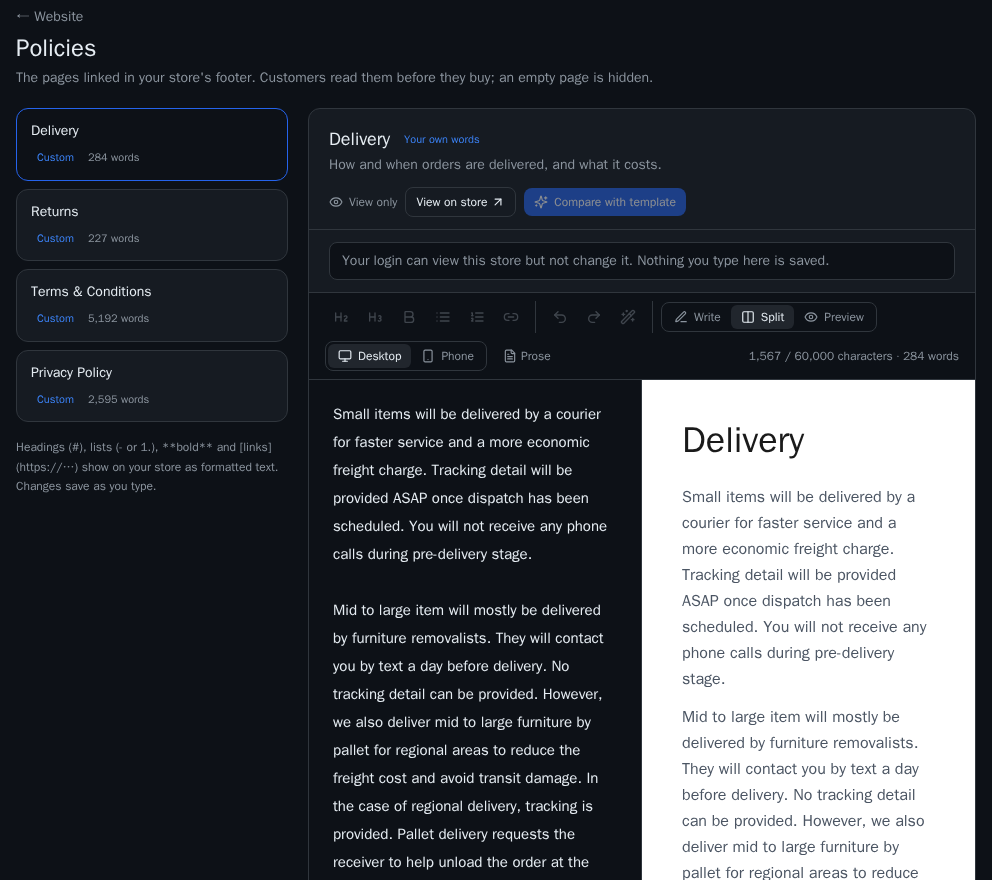
In the dashboard sidebar, open Website → Policies. Your four policy pages are listed on the left:
| Page | What it covers |
|---|---|
| Delivery | How and when orders are delivered, and what it costs |
| Returns | Change-of-mind returns and faulty items |
| Terms & Conditions | The terms every order is sold under |
| Privacy Policy | What you collect about customers and why |
These are the pages linked in your store's footer. A page with no text is hidden from your store.
Each page shows its word count and where it stands: Empty (hidden from your store), From template, Custom (your own words) or Out of date (see below).
How do I create a page from a template?
- Click the page on the left, for example Delivery.
- Click Start from template. BTAB fills its template in with your store's details and shows you a preview.
- Read it through, then click Use this. Or click Cancel to leave the page as it is.
Repeat for the other three pages. You can edit any page after you generate it.
Already have text on the page? The button says Compare with template instead. It shows your current text beside the template version, with the lines that differ highlighted. If you click Use this on a page you've written or edited, you're asked to confirm first: Replace my text or Keep mine. Your words are never replaced without that click.
What does the template fill in for me?
The templates only say things that are true of your store, using details BTAB already has:
- Who sells: the seller's name and ABN. On a store where BTAB is the seller, the pages say BTAB sells on behalf of your store.
- Delivery prices: your delivery zones, what a single item costs to send, and any free-delivery threshold. The template never promises delivery times.
- Change-of-mind returns: the returns window, if your store offers one. If it doesn't, the Returns page covers faulty and damaged items only.
- Advertising tracking: if you've switched on a Meta pixel or Google tag, the Privacy Policy mentions it. Your store adds its own "Advertising & cookies" section to that page.
- Customer accounts and marketing emails: mentioned in the Privacy Policy if your store uses them.
- Contact email: added to every page so customers know where to ask.
The Returns page always explains customers' rights for faulty items under the Australian Consumer Law, because those can't be excluded.
How do I edit a page?
Click into the text and type. The toolbar above the text adds headings, subheadings, bold, bulleted and numbered lists, and links. You can also type them yourself:
## Heading- A list itemor1. A numbered item**bold**[link text](https://…)
A few extras:
- Paste from a web page and headings, lists and links come across. Menus, images and the rest of that page are left out.
- Tidy (the wand button) fixes bullets and spacing. Press Ctrl+Z to undo it.
- Undo and Redo, plus Ctrl+B for bold, Ctrl+K for a link and Ctrl+S to save now.
The counter under the toolbar shows characters and words. A page can be up to 60,000 characters. The counter turns amber when you're close and red if you go over.
How does the preview work?
The preview shows the page as it will look on your store, in your store's colours and fonts:
- Write, Split or Preview switches between the editor, both side by side, or the preview alone.
- Desktop or Phone changes the preview width.
- View on store opens the live page once your store is published.
Do I need to save?
No. Your changes save about a second after you stop typing, and also when you click away, switch pages or leave the tab. The status next to the page title tells you where things are: Saving…, Saved with the time, or Unsaved changes. If a save fails, it tries again on its own.
What if two people edit the same page? Each page only saves if nobody else has changed it since you opened it. If someone did (in another tab, another staff member or the assistant), the status shows Changed elsewhere. Your text stays on screen, unsaved, and you choose Keep my text (yours replaces theirs) or Load the saved version (theirs replaces yours). Nothing is overwritten without you choosing.
Staff without permission to edit your store see the page as View only.
Why does a page say "Out of date"?
If you generated a page from the template and then something it was built from changes (who sells, your returns window, delivery prices, advertising tracking or your contact details), the page is marked Out of date and a banner appears above the text.
Click Review the update to see your page beside a fresh template version. Nothing changes on your store until you click Use this.
How do I set my change-of-mind returns window?
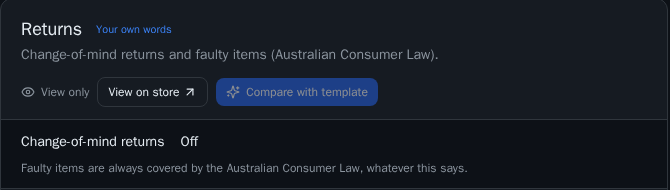
Open the Returns page. The Change-of-mind returns setting sits above the text: Off, 14 days or 30 days. Keeping the setting and the words together means they can't disagree. After you change it, a Returns page made from the template is marked Out of date, so review the update.
On a store where BTAB is the seller, the window is BTAB's and you can't change it here. The setting shows BTAB's rule instead of the buttons, and the template uses BTAB's window.
Faulty items are always covered by the Australian Consumer Law, whatever the change-of-mind setting says. For how returns and refunds work day to day, see How do buyers return items, and what do I need to do? and How do I refund an order?.
What this means for you
Generate all four pages from the templates first, so every footer link works and the details match your store. Then add anything specific to your business in your own words, and check the preview on Phone before you finish. When you see Out of date, review the update.
Want other pages, like an FAQ? See How do I add pages like FAQ or Shipping info to my store?.