How do I send store emails from my own domain?
Once your custom domain is verified, order emails to your customers come from orders@your-domain (or a name you choose) with your store name. Bought through BTAB? There's nothing to set up.
This guide is for store owners. Not you? Supplier guides
TL;DR: With a custom domain connected, your order emails can come from orders@your-domain (or another name you choose, like hello@ or sales@) instead of BTAB's address. If you bought the domain through BTAB, we set it up for you. If your domain's DNS is somewhere else, add one DNS record. Until the domain is verified, emails still go out as normal, from BTAB with your store name.
This is rolling out gradually. If you don't see a Sending email from… card on your Domain page yet, it isn't switched on for your store yet. Your emails keep working as they do today.
Who do my store emails come from?
| Your store | Customers see the email from | Replies go to |
|---|---|---|
| No custom domain | Your Store Name, sent from [email protected] | The email address on your BTAB vendor account |
| Custom domain, being set up or not verified | Your Store Name, sent from [email protected] | The email address on your BTAB vendor account |
| Custom domain, verified | Your Store Name, sent from orders@your-domain | The email address on your BTAB vendor account |
Your store name is always the sender name, so customers recognise you. When a customer hits Reply, it goes straight to you, never to a no-reply mailbox.
While this rolls out, some emails from a verified store may still come from BTAB's address with your store name. That's expected.
Which emails does this cover?
The emails your store sends to your customers and suppliers:
- Order confirmation
- Order updates (placed, shipped, fulfilled)
- Tax invoice
- Review request
- Quotes
- Purchase orders to your suppliers
Emails BTAB sends to you, such as sign-in, password reset and account notices, still come from BTAB.
Where do I see the status?
Go to Website → Domain. Under your current domain you'll see a card called Sending email from orders@your-domain, with its status on the right.
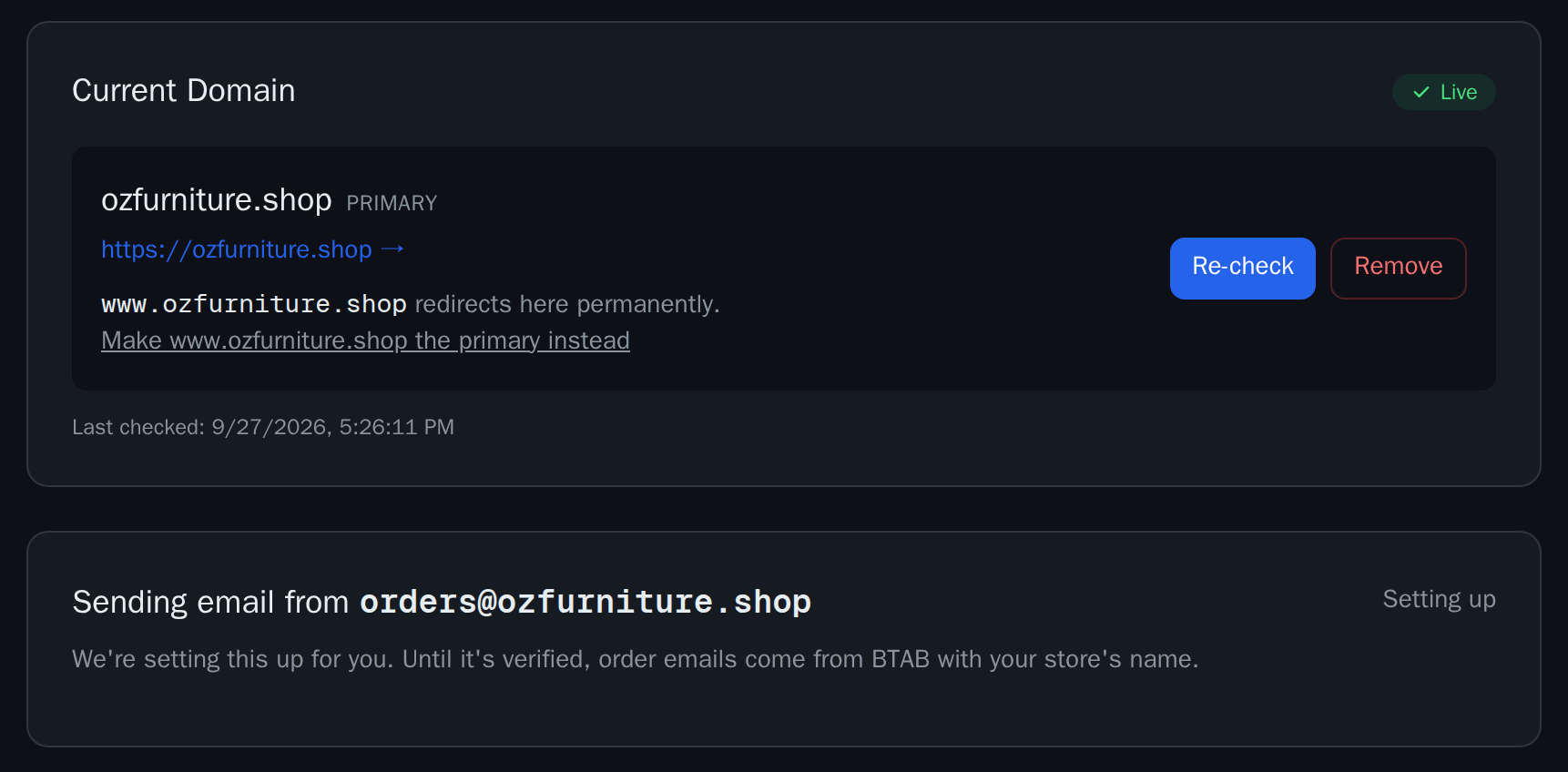
| Status | What it means |
|---|---|
| Setting up | We're getting your domain ready, or waiting for your DNS record. Emails come from BTAB with your store name. |
| Verified | Order emails to your customers go out from orders@your-domain (or the name you chose). |
| Using the fallback | We couldn't verify the email record for your domain, so emails come from BTAB with your store name. |
The card only appears when your store has a custom domain connected. See How do I connect my own domain to my store?.
Do I need to do anything?
If you bought your domain through BTAB: no. We add everything the domain needs, and the card moves from Setting up to Verified on its own. The same goes for a domain whose DNS BTAB already manages for you.
If your domain's DNS is with another provider: add one CNAME record. The card on your Domain page shows it in a box like this:
| Type | Host | Value | TTL |
|---|---|---|---|
| CNAME | btab._domainkey | (copy it from your Domain page; it's unique to your store) | 3600 (or your provider's default) |
Copy the Host and Value exactly. In the Host / Name field, enter only btab._domainkey. Most providers add your domain to the end for you.
Cloudflare
- Log in, open your domain, then go to DNS → Records.
- Click Add record.
- Type: CNAME. Name:
btab._domainkey. Target: the value from your Domain page. - Set Proxy status to DNS only (grey cloud). This matters: a proxied (orange cloud) record can't be verified.
- Click Save.
GoDaddy
- Log in and go to My Products, then choose DNS next to your domain.
- Click Add New Record and choose CNAME.
- Name:
btab._domainkey. Value: the value from your Domain page. TTL: 1 hour. - Click Save.
Namecheap
- Log in and go to Domain List, then click Manage next to your domain.
- Open the Advanced DNS tab and click Add New Record.
- Choose CNAME Record. Host:
btab._domainkey. Value: the value from your Domain page. TTL: Automatic. - Click the green tick to save.
Crazy Domains
- Log in to Account Manager, go to your domain list and select your domain.
- Open DNS Settings (Manage DNS) and click Add Record.
- Choose CNAME Record. Sub Domain:
btab._domainkey. Hostname: the value from your Domain page. - Click Save Record.
Using a different provider? Look for "DNS", "DNS records" or "Zone editor", and add a CNAME with the same Host and Value.
What if something goes wrong?
Your emails still go out. If your domain isn't verified yet, or the record stops working, or anything fails while sending, the email is sent from BTAB's address with your store name instead. Customers still get their order confirmations and updates. Nothing is lost.
If your card shows Using the fallback, check that the CNAME record is still in place at your DNS provider, exactly as shown on your Domain page. We keep checking, and once the record is right again, emails switch back to your domain on their own.
FAQ
Can I change the address from orders@ to something else?
Yes. On Website → Domain, in the Sending email from… card, type the name you want in Send from (for example hello, sales or orders) and click Save. The part after the @ is always your own domain, and nothing changes in your DNS. The card shows a preview of exactly what your shoppers will see. To go back, click Use orders@ (default).
Where do replies go?
To the email address on your BTAB vendor account. Customers can reply to any order email and it reaches you.
Can customers email orders@my-domain directly?
Not through this feature. It covers sending only. Customers should reply to your emails, which reach you.
How long does verification take?
Usually under an hour after the record is in place. DNS changes can take longer to spread, sometimes up to 48 hours. We check automatically, so there's nothing to click. If we still can't see the record after about three days, the card shows Using the fallback. We keep checking after that, so fixing the record is all you need to do.
Does this change anything if I don't have a custom domain?
No. Your emails keep coming from BTAB's address with your store name, and replies still reach you.
What this means for you
- Bought your domain through BTAB? Nothing to do. Just check that the card on Website → Domain says Verified.
- Domain with DNS elsewhere? Add the one CNAME line from your Domain page at your DNS provider, and your order emails will come from orders@your-domain.