How do I refresh my catalogue from a Shopify export?
Upload a fresh product export from Shopify and btab shows you every price, stock and status change before anything is written. Apply it in one click, and undo it if you need to.
This guide is for store owners. Not you? Supplier guides
TL;DR: Export your products from Shopify, then go to My Products → Refresh from a Shopify export and upload the file. btab lists every change. Nothing changes on your store until you click Apply to my store, and you can undo the whole refresh afterwards.
What does a refresh update?
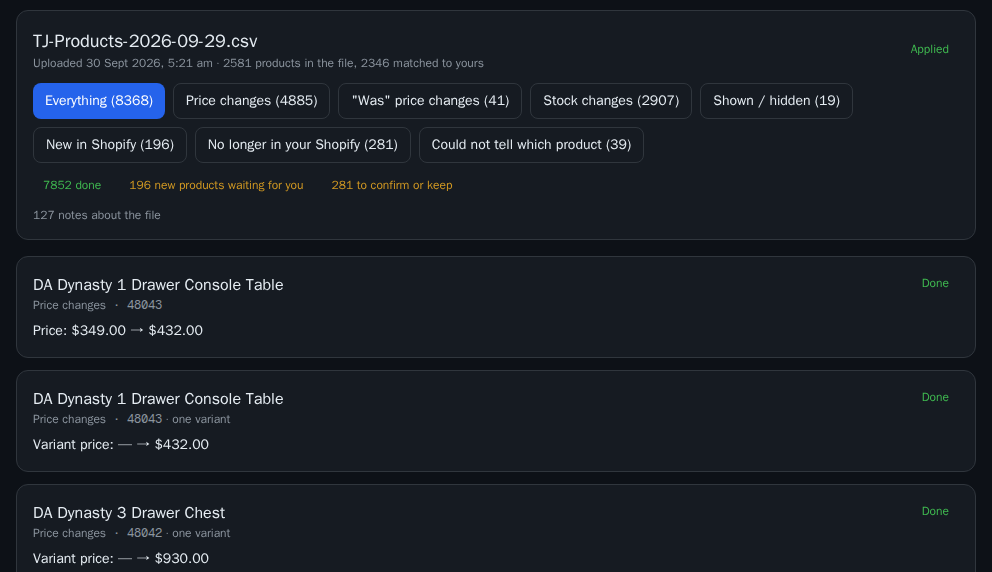
| Change | What happens when you apply |
|---|---|
| Price changes | Your selling price is updated to the Shopify price |
| "Was" price changes | The "was" (compare-at) price is updated |
| Stock changes | Stock is updated. A blank stock cell means "not tracked" |
| Shown / hidden | The product is shown or hidden on your store to match Shopify |
| New in Shopify | Nothing, until you choose to create it (see below) |
| No longer in your Shopify | Nothing, until you confirm it (see below) |
| Could not tell which product | Nothing. btab never guesses |
The first four are applied automatically when you click Apply. The two below that wait for your decision.
How do I run a refresh?
- In Shopify: go to Products → Export, choose all products, and export as CSV. A Matrixify export (.csv or .xlsx) works too.
- In btab: go to My Products and click Refresh from a Shopify export.
- Choose your file and click Upload and compare.
- btab matches each Shopify product to one of yours and shows what would change. Click the tabs to look through each kind.
- Deal with any New in Shopify and No longer in your Shopify products (below). You can also leave them for later.
- Click Apply to my store and confirm.
Can't see the link? Refreshing from a Shopify export isn't switched on for your store yet. Ask the btab team to turn it on.
What about products that are new in Shopify?
These are in your Shopify export but not on your btab store yet.
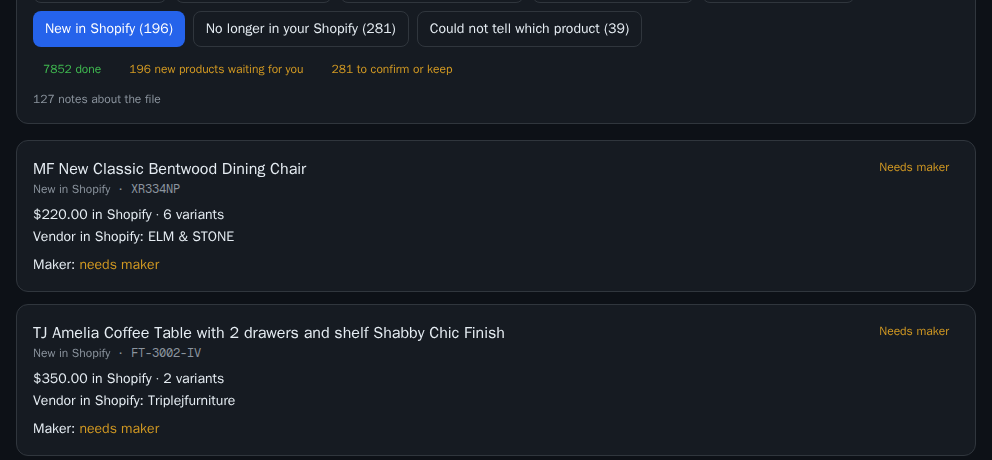
- Each one needs a maker: the supplier it comes from. btab fills this in when it can tell from your other products of the same brand, or from your supplier book. If it says needs maker, choose one from the list. If the list is empty, add the supplier under Suppliers first.
- Click Create as draft, or Don't create. To accept every new product that has a maker, click Create all new with a maker.
- When you apply, each one is created switched off on your store, without photos. Find it in My Products, add photos, and switch it on when it's ready.
What about products no longer in my Shopify?
These are on your btab store but weren't in the export. For each one, click Confirm retire or Keep. To retire them all, click Confirm all missing.
Retiring a product hides it on this store. It is never deleted.
What if btab couldn't tell which product it is?
This happens when more than one of your products could be the same Shopify product, usually because they share a SKU or handle. btab changes nothing for these. Fix the SKU or handle in Shopify, export again and upload the new file.
Can I undo a refresh?
Yes. Open the refresh under Past refreshes and click Undo this refresh. Everything it changed is put back. Products it created are switched off and retired, not deleted.
Good to know
- Nothing is overwritten by accident. If a product changed in btab after you uploaded the file, that change isn't written. It's marked Not written: changed since the upload. Upload a fresh export to pick it up.
- No stock column in your file? Stock is left as it is.
- "Price managed by btab: not changed" means btab looks after this store's prices, so the refresh doesn't change them.
- Every refresh is kept under Past refreshes, with what it wrote.
What this means for you
Whenever your Shopify prices or stock move, export and upload. Check the tabs, decide on anything new or missing, then apply. It's safe to try: nothing changes until you click Apply, and Undo puts it all back.
Related: How do I connect my Shopify store's orders?