How do I connect my Shopify store's orders?
Connect your Shopify shop once and its new orders, Kogan orders included, turn up in Orders on their own. Here's how to connect it and how to sort out an order that's waiting for a product match.
This guide is for store owners. Not you? Supplier guides
TL;DR: Go to Settings → Operations → Orders from Shopify, enter your shop address and click Connect with Shopify. From then on, every new Shopify order shows up in Orders without you re-typing it. If an order says waiting for a product match, pick the matching product once and it comes straight in.
How do I connect my shop?
- In your dashboard, go to Settings → Operations.
- Find the Orders from Shopify card.
- Type your shop address, for example
yourshop.myshopify.com. - Click Connect with Shopify.
- Sign in to Shopify and approve the access it asks for. btab only reads your orders, products and customers. It never changes anything in your Shopify.
- You're sent back to btab, and the card says Connected.
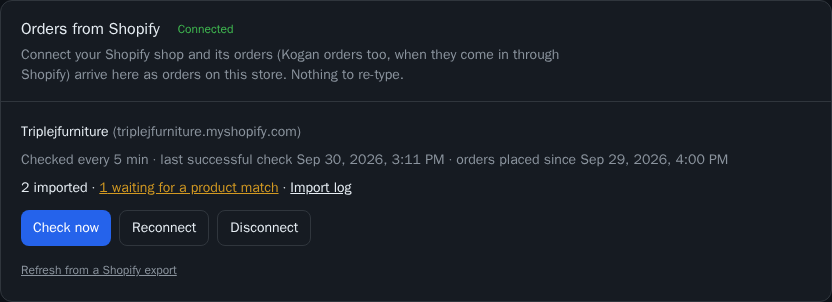
btab checks your shop every few minutes. The card shows when it last checked. To check straight away, click Check now.
Can't see the card? Importing Shopify orders isn't switched on for your store yet. Ask the btab team to turn it on.
Would rather use an access token? Click Use an access token instead and paste the Admin API access token from a Shopify app on your shop. It needs the read_orders and read_products permissions. btab stores the token encrypted and never shows it again.
Which orders come in?
| Order | What happens |
|---|---|
| New Shopify order, placed after you connected | Comes in as an order on your btab store |
| Kogan order that reaches your Shopify | Comes in the same way, marked Kogan |
| Order placed before you connected | Left alone, so nothing is handled twice |
| Shopify test order | Skipped |
| Cancelled, or payment voided, before btab saw it | Skipped |
A few more things to know:
- Paid on Shopify: the order comes in as paid.
- Not paid yet: it comes in waiting for payment. If it's paid on Shopify later, btab marks it paid here too.
- Purchase orders for the order's items are created as drafts. Nothing goes to your suppliers until you send them.
Every order btab has seen, and what happened to it, is in the Import log (the link on the card, or Orders → Imported from Shopify).
What does "waiting for a product match" mean?
btab works out which of your products a Shopify item is by its SKU. If it can't be sure, it holds the whole order instead of guessing. Nothing is lost: the order waits until you tell btab which product it is.
You'll see a warning at the top of Orders, and btab emails you the first time an order is held.
The reason is shown next to each item:
| Reason shown | What it means |
|---|---|
| no product in your store has this SKU | None of your products uses that SKU |
| more than one of your products has this SKU | Two or more products share it, so btab won't pick one |
| the Shopify item has no SKU | The item has no SKU in Shopify |
| sold at $0 on Shopify | The item has no price on the order |
How do I fix it?
- Click Sort them out on the Orders warning, or waiting for a product match on the Shopify card.
- Under the held item, type the product's name in Find your product for….
- Click the right product.
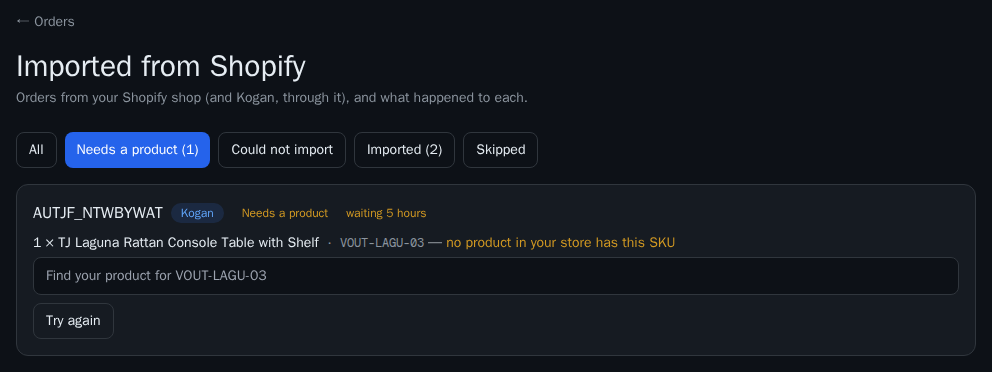
The order comes in straight away. btab also remembers the match, so future orders with that SKU come in on their own.
No search box? The item has no SKU or no price. Fix it in Shopify, then click Try again. You can also add the missing product to your store with that SKU and click Try again.
"Could not import" means something else went wrong. The reason is shown on the order, and btab retries it a few times on its own. Click Try again once you've fixed it.
What if the connection stops working?
If btab can't reach your shop, the card says Can't reach shop and Orders shows a warning. Click Reconnect and approve again in Shopify.
To stop importing, click Disconnect. Orders already imported stay in your dashboard.
What this means for you
Connect once in Settings → Operations, then keep an eye on one thing: the waiting for a product match warning. Match each new SKU once and those orders take care of themselves. If your Shopify prices or stock have moved, you can also refresh your catalogue from a Shopify export, with the link at the bottom of the same card.
Related: What do I need to do about returns?