How do I turn a quote into a sale?
Make a quote from scratch under Sales → Quotes, email it with a PDF, then sell it in the till (in full or on a deposit) or convert it to an order. The quoted prices carry through, so nothing is typed twice.
This guide is for store owners. Not you? Supplier guides
TL;DR: Go to Sales → Quotes → New quote → add the customer and products, adjust prices, add freight → Save quote. Then either email it, or click Open in till to take payment in full or as a deposit. The sale uses the quoted prices exactly and the quote is marked won.
This article covers quotes you make yourself, for example for a customer on the phone or in the shop. For quotes that start from a buyer's enquiry on your storefront, see How do I turn an enquiry into a quote and an order?. Both kinds end up in the same Quotes list.
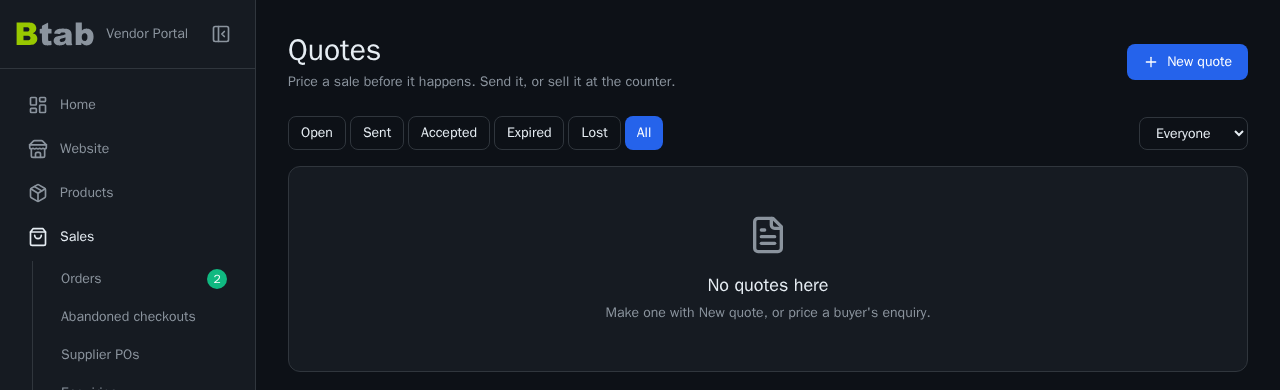
How do I make a quote?
- Go to Sales → Quotes and click New quote.
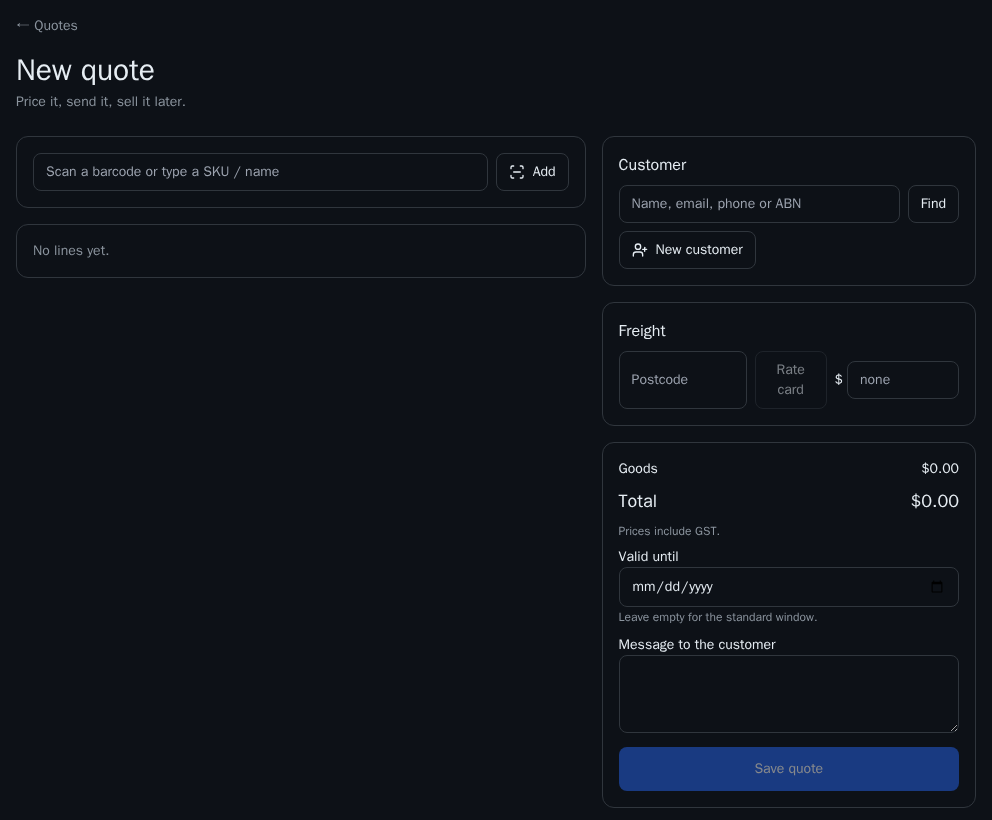
- Customer: search by name, email, phone or ABN and click the match, or click New customer and fill in their name and email (business name, ABN and phone are optional). The customer needs an email, because quotes are emailed.
- Products: scan a barcode, or type a SKU or name and click Add. Each line starts at your store price, or at the customer's own price if they have one in their price book. Change the quantity or price on any line.
- Freight (optional): enter the delivery postcode and click Rate card to fill in your rate, or type an amount.
- Valid until (optional): pick a date, or leave it empty for the standard window.
- Message to the customer (optional): lead times, terms, anything they should know.
- Click Save quote.
All prices include GST.
Once it's saved you can:
- Email to … sends the quote to the customer with the PDF attached.
- Download PDF to print it or send it yourself.
- Open in till to sell it now (see below).
How do I sell a quote at the counter?
When the customer is ready to pay:
- In Sales → Quotes, find the quote and click Open in till.
- Check the lines and total. They're the quoted prices, so they don't count as a discount at the till.
- Choose how the goods leave: Taken now, Pickup later or Deliver. A quote with freight is always Deliver, and you'll need the street, suburb and postcode.
- Under Payment, pick EFTPOS, Cash or Card. To split the payment, click Split — add a tender.
- Click Complete sale.
Taking a deposit? If deposits are switched on for your store, tick Take a deposit — the balance is paid later, enter an amount less than the total and click Take deposit. The screen shows what's still owed.
When it's done you'll see the order number, and you can Print receipt or open the A4 invoice. The quote moves to won.
Open in till only appears if the counter is switched on for your store. For more on the till, see How do I sell at the counter?.
What if the customer agreed but isn't paying at the counter?
For a quote that came from an enquiry, go to Sales → Enquiries and click Convert to order on that enquiry. BTAB creates the order at the quoted prices and quoted freight, reserves the stock, and marks the quote won. You don't re-key anything.
Why can't I sell or convert a quote?
A quote can be sold or converted once, and only while it's current. Check for these:
| What you see | What to do |
|---|---|
| expired | Click Re-issue in the Quotes list. It keeps the same number and prices with a fresh validity window. Send it again so the customer gets the new link |
| Status lost or closed | Only open, sent or accepted quotes can be sold |
| An Order button instead | It's already been sold. Click Order to go to it |
| An error about stock | Nothing is sold. Restock or change the quote first |
| A product is discontinued or no longer exists | Re-quote without that line |
How do I keep track of quotes?
The tabs on Sales → Quotes sort them by where they stand: Open, Sent, Accepted, Expired, Lost and All. The line above the list shows how many quotes are in the tab and their total value. If you have staff, use the drop-down on the right to see one sales person's quotes, or The owner for your own.
What this means for you
Quote in the dashboard, not on paper. When the customer says yes, Open in till or Convert to order turns it into a sale at the agreed price in one step. Check the Expired tab each week and re-issue anything still worth chasing.