How do I sell at the counter?
The Counter is your till: scan or search products, pick the customer, split the payment across cash, EFTPOS, card or a gift card, take a deposit, and print the receipt. You can also take the balance of a deposit and sell a quote from here.
This guide is for store owners. Not you? Supplier guides
TL;DR: go to Sales → Orders → Counter. Scan or search the products, pick the customer if you want one, choose how the goods leave, enter the payment (split it if you need to) and click Complete sale. Then print the receipt or the A4 invoice.
How do I ring up a sale?
- Go to Sales → Orders and click Counter.
- Scan a barcode, or type a SKU or product name and click Add. If you searched, click the product in the list. Scanning the same product again adds one more.
- Use − and + to change quantities, or the bin to remove a line.
- Under Customer, click Find to look up a customer by name, email, phone or ABN, or click New customer to add one. You can skip this for a walk-in sale.
- Under Goods leave, pick Taken now, Pickup later or Deliver.
- Under Payment, pick the method and enter the amount.
- Click Complete sale.
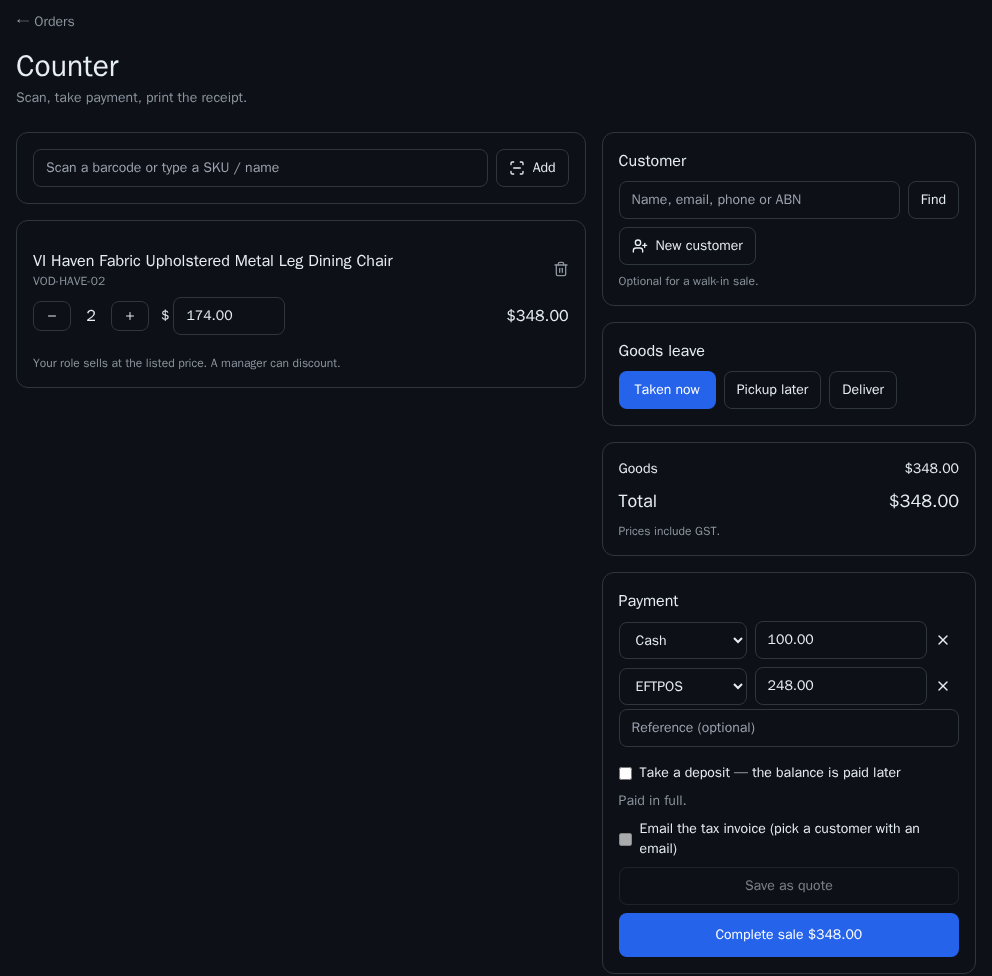
Prices include GST. The sale is saved as an order with its own tax invoice number, and it shows in Sales → Orders like any other order.
Can I give a discount?
Yes, if your login is allowed to. Type a new price in the line's $ box. The till shows the original price and the discount in dollars and %, and the receipt does too.
If your login can't discount, the price box is locked and the till says "Your role sells at the listed price. A manager can discount."
How do I charge for delivery?
Pick Deliver, enter the street, suburb, state and postcode, then click Rate card to use your delivery rates. You can also type the delivery charge yourself. If you charge less than the rate card, the till notes it as a delivery discount.
How do I split a payment?
Enter the first amount, then click Split — add a tender. A second line appears with the rest filled in. Payment methods are Cash, EFTPOS, Card, Gift card, Bank transfer and Other. For a gift card, type its code. For anything other than cash you can add a reference.
The payments must add up to the total exactly. If the customer hands over more cash than the total, give change and enter the amount you kept.
If the till says the payments settle to different places, take them as separate sales.
How do I take a deposit?
- Pick the customer who'll owe the balance. A deposit needs one.
- Tick Take a deposit — the balance is paid later.
- Enter the deposit amount. It must be less than the total.
- Click Take deposit.
A deposit can be taken as cash, EFTPOS, card or one of your store's gift cards. The finished screen shows the deposit taken and how much is still owed.
How do I take the rest of the payment later?
- Open the order in Sales → Orders.
- In the side panel, the payments box shows Part paid and the Balance due. Click Take payment.
- The balance is filled in. Change the amount to take only part of it, or click Split — add a payment to take it in more than one way (cash, EFTPOS or card).
- Click Take $….
Paying the whole balance marks the order paid. The receipt lists every payment made on the order.
How do I sell a quote?
- Go to Sales → Quotes and click Open in till on the quote.
- The till opens with the quote's items at the quoted prices, its freight and its customer.
- Pick how the goods leave, enter the payment in full or tick Take a deposit, and complete the sale.
The quote is marked won and linked to the new order. An expired quote has to be re-issued from Quotes first, and a quote that's already an order can't be sold again. More in From quote to sale.
You can also go the other way: build a cart at the till, pick a customer with an email, and click Save as quote.
How do I give the customer a receipt?
After the sale:
- Print receipt prints a slim receipt for an 80 mm receipt printer. It shows your store and ABN, the tax invoice number, the items with any discounts, GST, every payment and the salesperson.
- A4 invoice opens the full-size tax invoice.
- To email the tax invoice, tick Email the tax invoice before you complete the sale. You need a customer with an email address for this.
What if the Counter button isn't there?
The Counter is being switched on for stores. Until it's on for yours, use New order on the Orders page to record a sale. The deposit box also only appears once part payments are switched on.
What this means for you
- Use the Counter for walk-in and phone sales, so every sale lands in Orders with a proper tax invoice.
- Set up staff logins so each receipt shows who made the sale and only the right people can discount.
- If a customer brings something back, refund it from the order. See How do I refund an order?.