How do I import my catalog from a CSV?
Upload a CSV, match your columns to BTAB's fields, and import your whole catalog at once. Products come in as drafts, ready for you to submit for review.
This guide is for suppliers. Not you? Store owner guidesShopper guides
TL;DR: Go to Import, upload your CSV, and match your columns to BTAB's fields. Your products are created as drafts — review them, then Submit All for Approval to send them for review.
When to use import
Use Import when you want to add many products at once from a spreadsheet. For just a few products, the product form (Add Product) is quicker — see How do I get my products onto BTAB?.
How to import
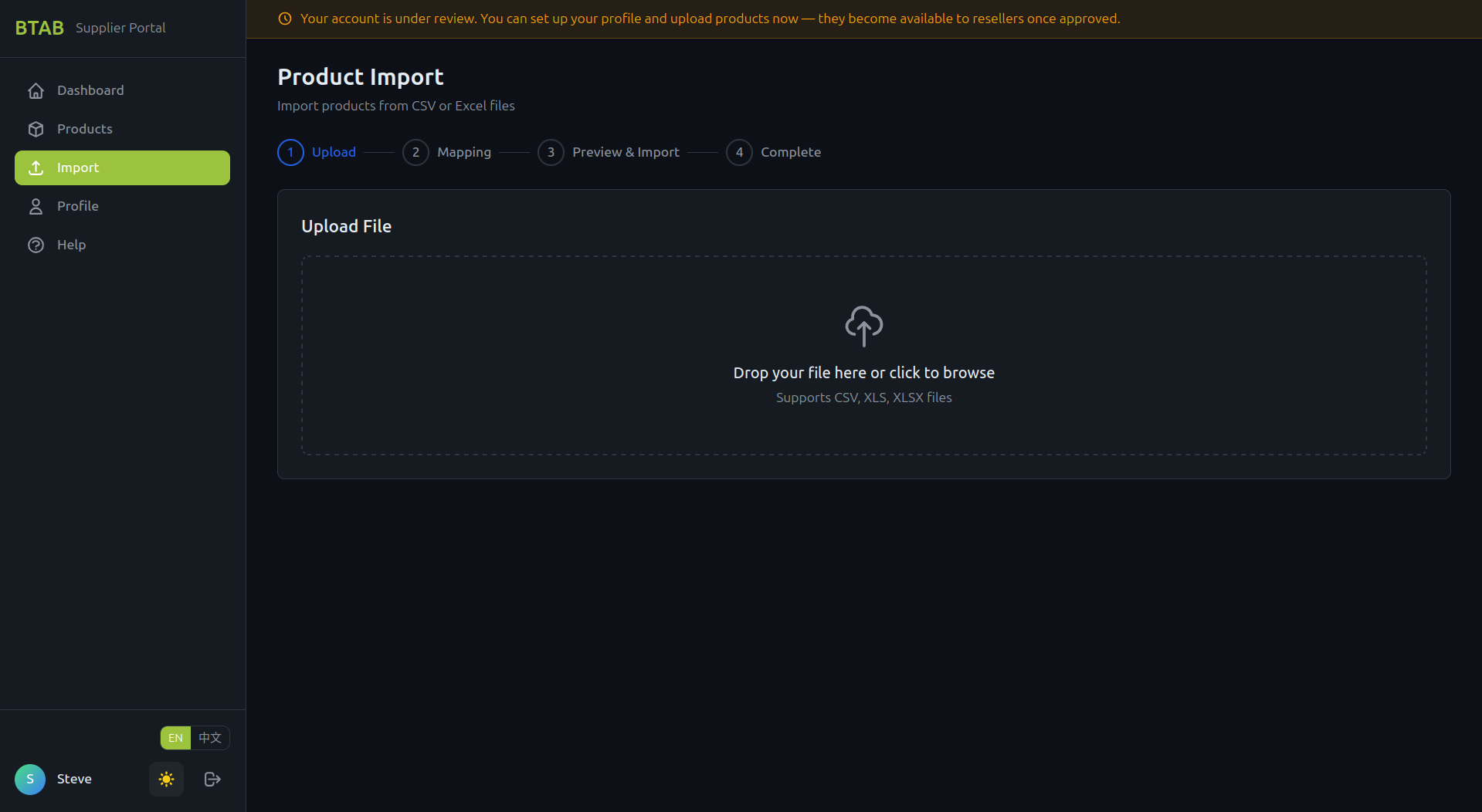
Open Import from your dashboard and upload your file (CSV, XLS, or XLSX).
After the file is analyzed, you reach the Column Mapping step. For each column in your file, BTAB shows you an example value from your first row and lets you pick which BTAB field it maps to. Columns you don't need can be left as -- Skip this column --.
The columns that matter
You can map many fields, but three carry the most weight:
- Product Name — what the product is called.
- Your price — map your price column to Wholesale Price. This is the price you need to receive (your cost).
- Image URL — a direct link to the product photo. BTAB downloads it into storage for you. A product imported without an image is hidden from buyers until you add one.
Other fields you can map include SKU / Product Code, Description, Category, Brand / Vendor, Tags, and Stock Quantity.
What happens after you import
Your products are created as drafts — they're in your catalog but not yet submitted. When you're ready, use Submit All for Approval on the import result screen to send the whole batch for review at once. (You can also submit products individually later from the product list.)
After BTAB reviews them, approved products appear in the catalog for vendors. If any come back Rejected, see Why was my product rejected, and how do I fix it?.
Common issues
- Missing images — products imported without an image are flagged and stay hidden from buyers until you add one. You can retry the image download on the import screen, or add images per product on the Products page. See How do I add images to my products?.
- Required fields blank — rows missing a product name or price are reported as errors or skipped. Fix them in your file and re-import only those rows.
- Duplicate file — if you upload the same file again, BTAB warns you so you don't create duplicate products.