Can my ChatGPT guide me through setting up my store?
Yes. Connect ChatGPT, Grok, Claude or another AI assistant to your Btab store in a few minutes, then ask it to set up your theme, pages, products and prices with you. Here is what works today, what each assistant needs, and the exact steps.
By The BTAB Team
Yes. You can connect your own AI assistant to your Btab store and let it guide you through the setup. It does not just tell you where to click: once you allow it, it can make the changes for you, one at a time, with you watching.
This works with ChatGPT, Grok, Claude and most other assistants that can add a "connector". If you have no AI assistant of your own, Btab has one built into your dashboard (see the end of this post).
What your assistant can do for you
Once connected, your assistant sees your real store, not a guess. You can ask it things like:
- "Set up my store with a calm, minimal theme and show me how it looks."
- "Write an About page for my store. We sell handmade candles."
- "Add these 20 products to my store and price them 10% above the suggested price."
- "Create a 15% discount for the weekend."
- "Which of my products are missing photos or descriptions?"
- "Which orders and enquiries are waiting for me?"
It can change your theme and colours, your pages and their sections, your store name, tagline and logo, the products you sell and their prices, discounts, your store's blog posts and your policies. It can also help you handle orders and enquiries.
Some things stay out of reach, always. An assistant can never see your messages, your payouts, your accounting or your API keys, and it can never delete your store.
You stay in control:
- A big change, such as switching to another theme, is shown to you first, and only happens when you confirm it.
- Every change an assistant makes is listed in your dashboard under Settings → AI agent → Agent activity, and most changes have an Undo button.
- You can disconnect an assistant at any time, and it loses access straight away.
What each assistant needs
ChatGPT. You need a paid ChatGPT plan (Plus, Pro, Business, Enterprise or Edu) and ChatGPT on the web: OpenAI offers this kind of connection on the web, not in the phone app. You also turn on Developer mode in ChatGPT's settings first. OpenAI's own guide says changes made through a connector ask you to confirm first. ChatGPT supports the same sign-in that Btab uses, but we have not yet connected a real ChatGPT account to a Btab store ourselves. If something does not work, tell us.
Grok. You add Btab as a custom connector at grok.com. xAI's own page does not say which plans can do this; guides from other companies say it needs a SuperGrok subscription. In Grok Business and Enterprise workspaces, an admin adds connectors. We connected Grok to one of our test stores in September and it read the store's products, orders and enquiries.
Claude. Claude works on the free plan (one connector), Pro and Max, on the web, the desktop app and the phone app. We have tested this one end to end.
(We checked OpenAI's and xAI's own pages on 3 October 2026. These products change often, so their pages are the final word.)
The steps
You need a Btab store first: your assistant connects to a store, it does not create one. Then:
1. Copy your store's address
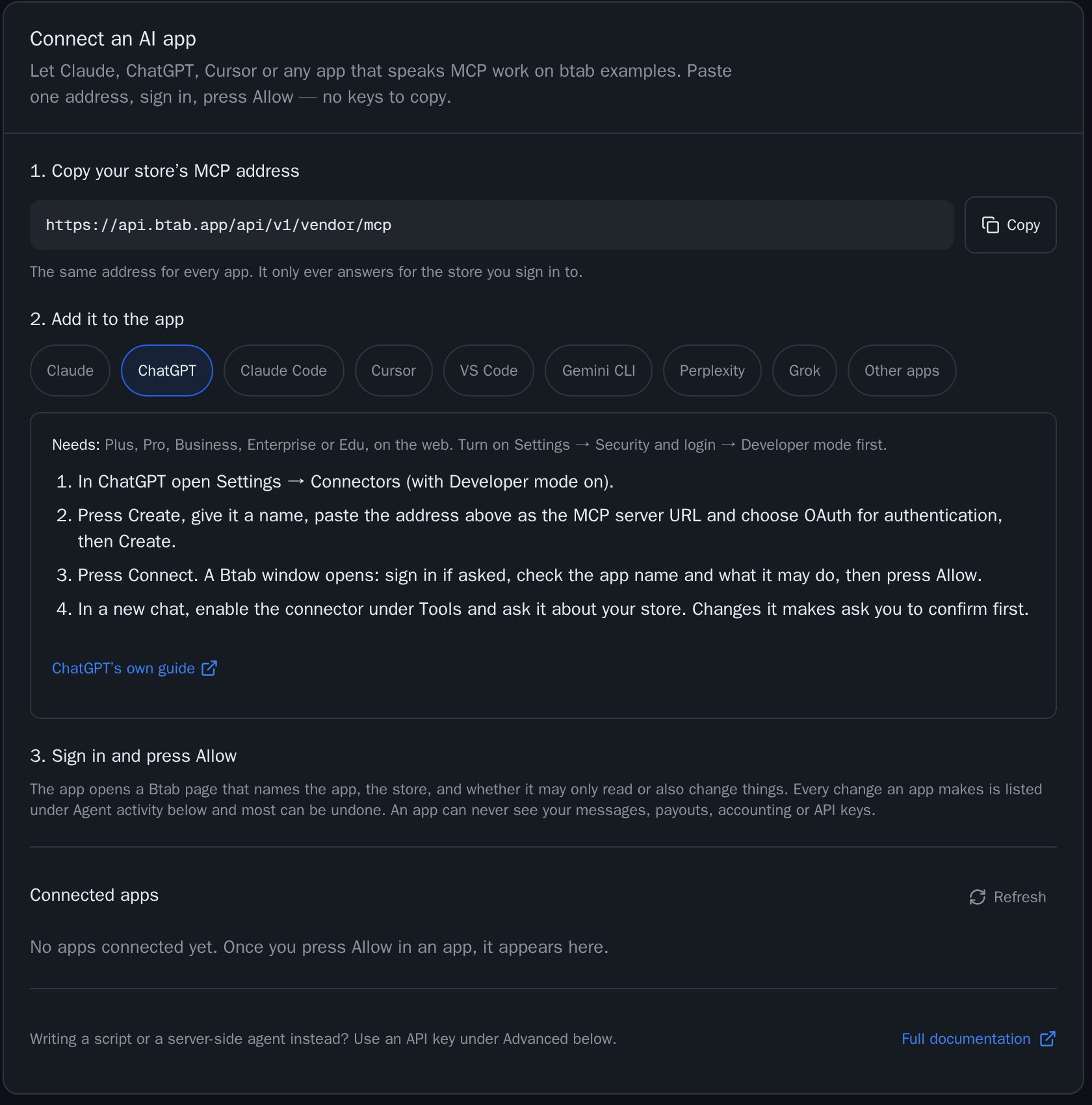
In your Btab dashboard, open Settings → AI agent. Under Connect an AI app, press Copy next to your store's address. It is the same address for every assistant, and it only ever answers for the store you sign in to. There is no key to copy.
2. Add it to your assistant
Pick your assistant in the row of buttons. The card shows its steps.
In ChatGPT (on the web):
- Open Settings → Security and login and turn on Developer mode.
- Add a new connector (OpenAI's guide calls the page Plugins: press +). Give it a name, paste your store's address as the server URL and choose OAuth.
- Press Connect. A Btab page opens (step 3 below).
- In a new chat, switch the connector on under Tools and ask it about your store.
In Grok:
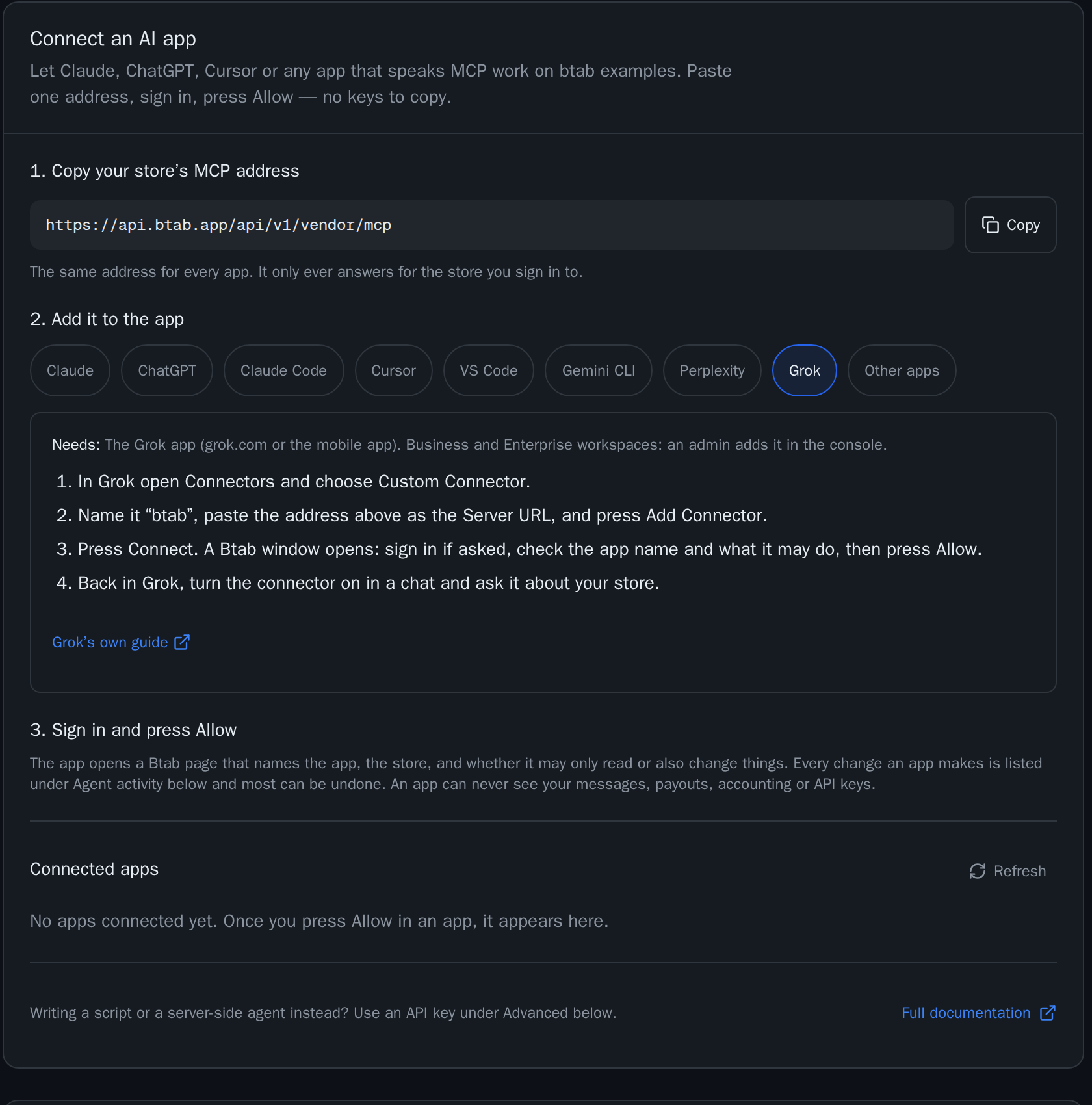
- Go to grok.com/connectors, press New Connector and choose Custom.
- Name it "btab", paste your store's address as the server URL and add it.
- Press Connect. A Btab page opens (step 3 below).
- Back in Grok, switch the connector on in a chat and ask it about your store.
3. Sign in and press Allow
Your assistant opens a Btab page. Sign in if it asks you to. The page names the assistant, your store, and what it may do. Check them, then press Allow.
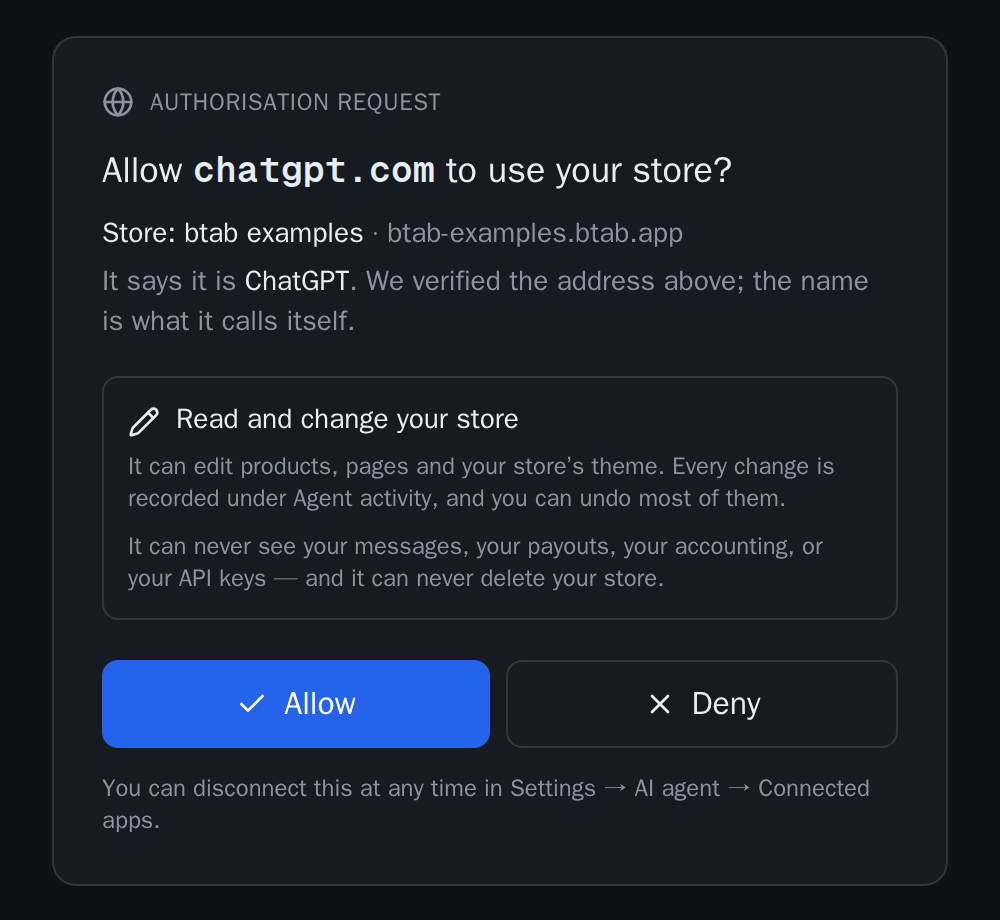
That is all. Your assistant now appears under Connected apps, with a Disconnect button.
4. Ask it to guide you
Start simple: "Look at my store and tell me what to set up first." A good assistant reads your store, tells you what is missing, and offers to do each step with you. Ask it to show you a preview before a big change.
No AI assistant of your own? Use the one in your dashboard
Every Btab store has a Store assistant built in. Press the sparkle button at the bottom of your dashboard's menu. Ask it about your products, orders, enquiries or store, and it answers from your real data. Where changes are switched on for your store, it can also suggest a change: you see the exact before and after, and you decide whether to apply it.
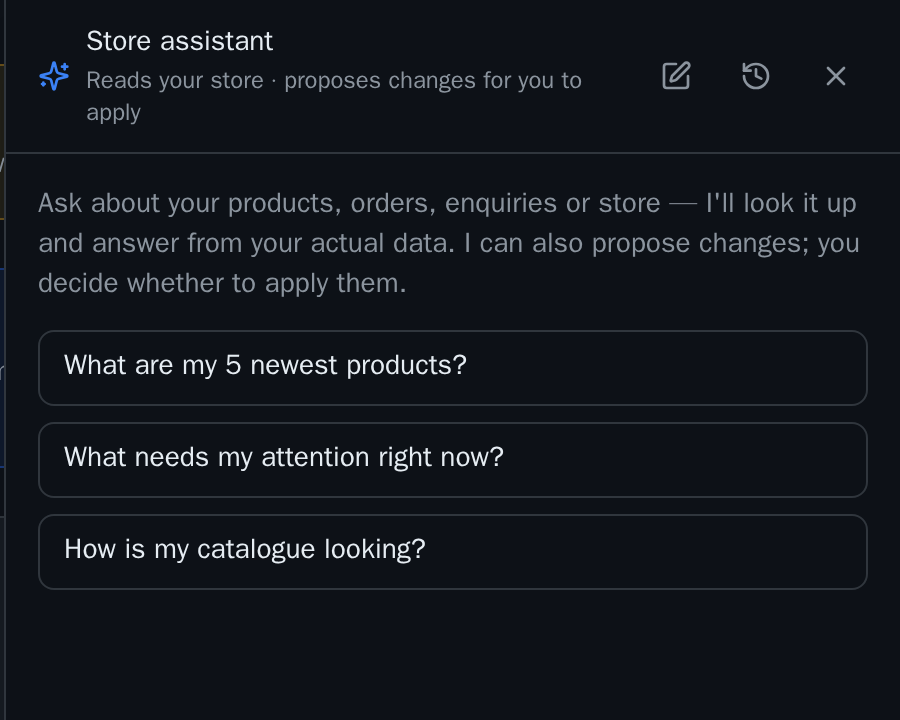
It is a good place to start: no sign-up, no plan, nothing to connect.