Connect your own domain to your store
Your store can answer on yourshop.com.au instead of yourshop.btab.app. It takes one DNS record at your registrar, about five minutes, and there is no certificate to buy — here is every screen and every field, including where to click at Crazy Domains, GoDaddy, VentraIP and Namecheap.
By The BTAB Team
You bought a domain — yourshop.com.au — and your BTAB store currently lives at yourshop.btab.app. This guide gets your own name onto your store. It takes about five minutes of clicking and then a wait while the internet catches up.
You do not need to understand DNS to do this. You need to copy two short pieces of text from one screen to another. We will explain what they mean as we go, but if you only want the steps, the steps are all here.
This guide is for a domain you already own, bought wherever you like (Crazy Domains, GoDaddy, VentraIP, Namecheap, anyone) and kept there. Don't have a domain yet? You can buy one through BTAB instead. It's registered in your name and we connect it to your store for you, so you won't need any of the steps below.
Before you start
You need three things:
- A domain you own. Any registrar. Any extension —
.com.au,.com,.store, anything. - The login for that registrar. Not your BTAB login — the account at the company you bought the domain from. This is the one people get stuck on: if you bought the domain through a web designer years ago, the login may be theirs, and you will need it from them.
- A published BTAB store. If you have not created your store yet, do that first; the Domain page will send you to the store builder.
Step 1 — Tell BTAB which domain you want
In your vendor dashboard, go to My Store → Domain. If you have not added one yet, the page looks like this:
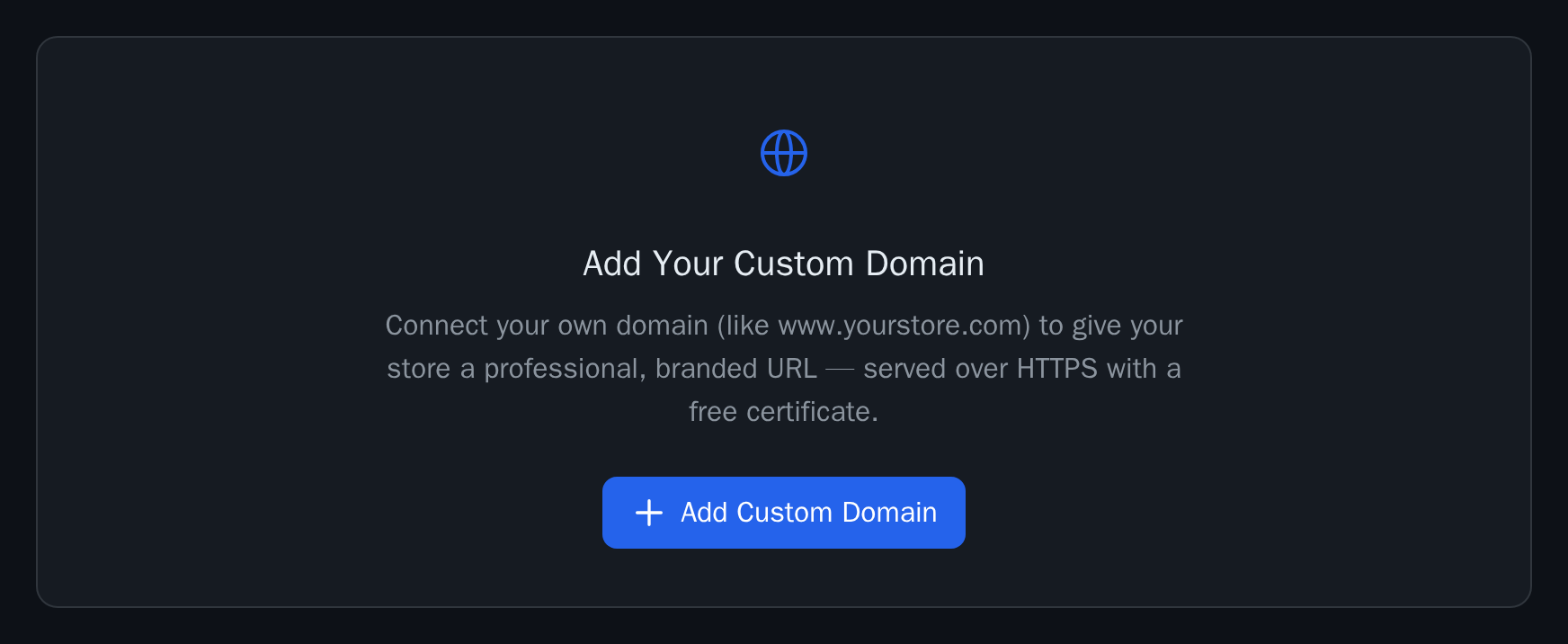
Click Add Custom Domain, type the exact address you want people to use, and click Add Domain.
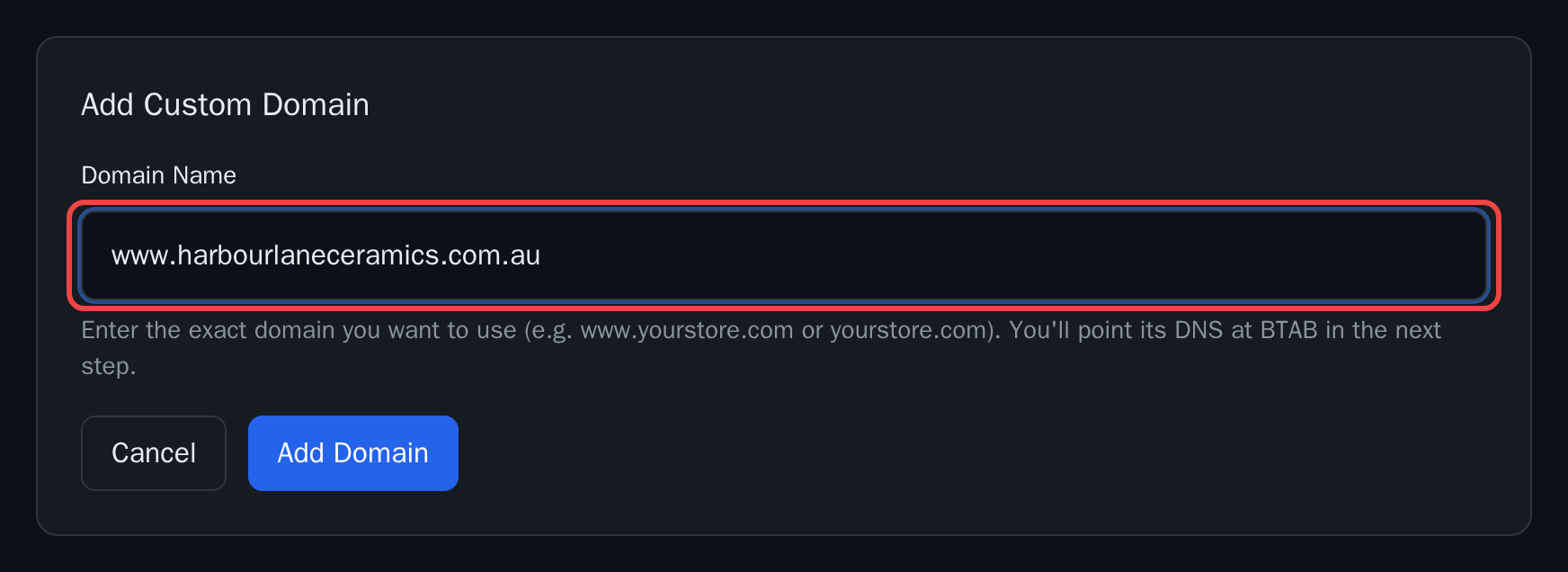
"Exact" matters. www.yourshop.com.au and yourshop.com.au are two different addresses, and the one you type here is the one your store will answer on.
Our recommendation: enter the www. version. Not because www is fashionable — it isn't — but because it is the setup that keeps working on its own if we ever move servers, for reasons that will make sense in about ninety seconds. You can still print yourshop.com.au on your business cards; Step 2 covers how.
Nothing has changed on the internet yet. You have only told BTAB what to expect.
Step 2 — Copy the record BTAB gives you
The page now shows a panel headed Point your domain at BTAB with two options in it. You need one of them, and we have a clear recommendation about which.
Use the CNAME. Here's why it matters.
A CNAME is a signpost. It doesn't say where your store is; it says "go and ask sites.btab.app, they'll know." Every time someone visits, they follow the signpost and get our current answer.
An A record is a street address written down. It's the IP address of where our servers live today.
That difference is the whole argument. If we ever move servers — a failover, a migration, a bigger machine — we change what sites.btab.app points at, and everyone using the CNAME follows us automatically, with no action and no downtime. Anyone who wrote down the IP address has to notice, log in, and edit it. We would tell you, but you would have to act.
So:
| Set up | Record | Host | Value | TTL |
|---|---|---|---|---|
| Recommended | CNAME | www | sites.btab.app | 3600 |
| Fallback (see below) | A | @ | the IP shown on your Domain page | 3600 |
If your registrar offers "Automatic" or "Default" for TTL, that is fine.
"But I want people to be able to type it without the www"
Of course you do. Nobody says "double-you double-you double-you" out loud any more.
You can have both, and the best way to get there is still the www CNAME:
- Point
wwwat us with the CNAME. That is your real store address. - Then make the bare
yourshop.com.ausend visitors to the www version. Most registrars have this built in and free, under a name like domain forwarding, URL redirect or web forwarding. It takes about thirty seconds. Someone who types the bare name lands on your store; anyone who types the www goes straight there.
Customers never notice the difference. Your address is still yourshop.com.au on your business cards.
If you really want the bare domain to serve the store itself
There is a catch, and it is not ours: the rules of DNS forbid a CNAME on a bare domain. A bare domain has to be able to carry other records — your email's MX records, for one — and a CNAME cannot sit alongside them. That is why the dashboard shows @ on both options when you enter a bare domain, but only the A record is actually usable.
Two ways out, best first:
- If your DNS provider offers ALIAS, ANAME or CNAME flattening, use it: point the bare domain at
sites.btab.appwith that record type. It behaves like a CNAME at the apex, so you keep the follow-us-automatically benefit. Cloudflare does this by default; not every registrar has it. - Otherwise, use the A record. Copy its value exactly as shown on your Domain page, never from an old note or another site: it's the current address of our servers. It works perfectly well and thousands of sites are set up this way. Just know what you are signing up for: if we ever change edge servers, you will need to come back and update that number. We will tell you well before it happens.
@ means "the domain itself" — DNS shorthand that nearly every registrar uses. Some use a blank field instead; some want the full domain typed out. Your registrar's own help page is the authority, and the section below covers the common ones.
There is no verification code. Some platforms make you add a TXT record with a long random string to prove you own the domain. BTAB does not. Pointing the domain at us is the proof — nobody can point your domain at us except someone who can log in to your registrar. One record, and you are done.
Step 3 — Add the record at your registrar
This is the only part that happens outside BTAB. Below are the four registrars most of our Australian vendors use. If yours isn't here, the shape is always the same: find the DNS or Advanced DNS page, add a record of type CNAME, put www in the host field and sites.btab.app in the value field.
Before anything else, one check that saves a lot of time: the DNS page only controls your domain if your domain is using that company's nameservers. If your domain was ever pointed at a web host, a designer's server or Cloudflare, records you add at the registrar are being politely ignored. Every registrar below says so on its own DNS page, in its own words.
Crazy Domains
Log in, find your domain, and on the Domain Registration row click MANAGE. That opens the Domain Manager. Click the DNS Settings tab, then ADD RECORD.
| Field | What to put |
|---|---|
| Choose Type | CNAME Record |
| Sub Domain | www |
| Hostname | sites.btab.app |
Then SAVE RECORD. For a bare domain, leave Sub Domain empty — their own note says "the empty Sub Domain field is equivalent to @ in some other providers."
Two Crazy Domains specifics worth knowing:
- Your domain must be on
ns1.crazydomains.com/ns2.crazydomains.com(orns1.dnspackage.com/ns2.dnspackage.comon Premium DNS) for this page to do anything. - If you also have Crazy Domains hosting, you are probably in the wrong screen. Hosting customers sit on
ns1.syrahost.com/ns2.syrahost.comand manage DNS in cPanel → Zone Editor instead — and that screen uses the opposite convention: the Name field wants the full hostname,www.yourshop.com.au, not justwww. If the DNS Settings tab looks empty or your changes do nothing, this is why.
Crazy Domains' help doesn't document a TTL field in this screen; if you see one, leave it alone.
GoDaddy
Sign in to your Domain Portfolio, select the domain to open Domain Settings, then select DNS.
Do not click Add New Record yet. Every GoDaddy domain ships with a www CNAME already in the list, pointing at @. GoDaddy won't let you add a second record with the same name, so the move is to Edit the existing www record, not add one. This trips up more people than anything else on this page.
| Field | What to put |
|---|---|
| Type | CNAME |
| Name | www |
| Value | sites.btab.app |
| TTL | leave the default (1 hour) |
Then Save. Name takes the prefix only — www, never www.yourshop.com.au.
For a bare domain, GoDaddy is A-record-only: their own documentation says the CNAME Name field "cannot be the @ symbol", and their developer docs are blunter — "Do not create a CNAME record with name: "@" (the apex). Use A/AAAA records at the apex instead." So on GoDaddy: www CNAME, plus forwarding from the bare name.
Two more: if you have Domain Protection on the domain, saving asks for an extra verification code. And if you're following an older tutorial that mentions Host, Points to and a Finish button — that UI is gone. The current fields are Name, Value, Save.
VentraIP
Log in to VIPcontrol, click My Services at the top, then the Domains tab underneath, then the DNS button next to your domain. You get a table of your records; the row at the top of the table is where you add a new one. Fill it in and click the plus icon.
| Field | What to put |
|---|---|
| Type | CNAME |
| Hostname | www |
| Value | sites.btab.app |
| TTL | leave the default |
For a bare domain, leave Hostname blank — their instruction is literally "leave this blank to use the root domain."
One VentraIP warning that is genuinely destructive and worth reading twice. If your domain isn't on VentraIP's DNS yet, you'll be tempted by the DNS Hosting → Enable button. Their own boxed warning: enabling it "will immediately replace all existing DNS records (A, CNAME, MX records)" — so if you have email on that domain, write your MX records down first and re-create them afterwards, or your mail stops.
Also useful: some records are hidden by default. Show All at the bottom of the table reveals them.
Namecheap
Sign in, choose Domain List in the left sidebar, click Manage next to your domain, then the Advanced DNS tab. Find Host records and click Add New Record.
| Field | What to put |
|---|---|
| Type | CNAME Record |
| Host | www |
| Value | sites.btab.app |
| TTL | leave it on Automatic |
Then Save All Changes.
The Namecheap gotcha — delete the parking records first. A newly registered Namecheap domain comes with two records for their parking page: a URL Redirect on @, and a CNAME on www pointing at parkingpage.namecheap.com. Namecheap's own documentation says these "should always be removed after setting up custom host records." The www one directly collides with yours, and a CNAME blocks every other record on the same host. Delete them with the black trash bin icon.
Type sites.btab.app in full. Namecheap warns that it appends your own domain to values in some cases — that applies to your own subdomains, not to an external target like ours.
Namecheap also has the nicest answer for a bare domain of the four: an ALIAS Record. Unlike a CNAME it can sit at @ alongside your MX records. Set Type ALIAS Record, Host @, Value sites.btab.app — you get apex support and keep the automatic-follow benefit of a pointer. If you'd rather keep it simple, the A record (value from your Domain page) works too.
Using Cloudflare for your DNS?
If your domain's nameservers point at Cloudflare, add the record there rather than at your registrar. One setting matters more than the record itself.
In Cloudflare's DNS table there's a Proxy status column showing either Proxied (an orange cloud) or DNS only (a grey cloud). It must be DNS only. New records default to Proxied, so you have to click the cloud to grey it out. Leave it orange and Cloudflare answers with its own IP addresses instead of ours — we can't confirm your domain points at us, and your HTTPS certificate never gets issued.
The upside of Cloudflare: it flattens a CNAME at the root by default, so you can point the bare yourshop.com.au straight at sites.btab.app with a CNAME and it simply works — the best of both worlds, with no IP address to maintain.
Any other registrar
The words change; the record doesn't.
| We call it | Your registrar might call it |
|---|---|
| Host | Name · Sub Domain · Hostname · Alias |
| Value | Points to · Target · Content · Hostname · Record |
| Bare domain | @ · a blank field · your full domain name |
Type CNAME, host www, value sites.btab.app. If the field only accepts the full name, type www.yourshop.com.au. Everything else can stay at its default.
Step 4 — Wait, then press Check status
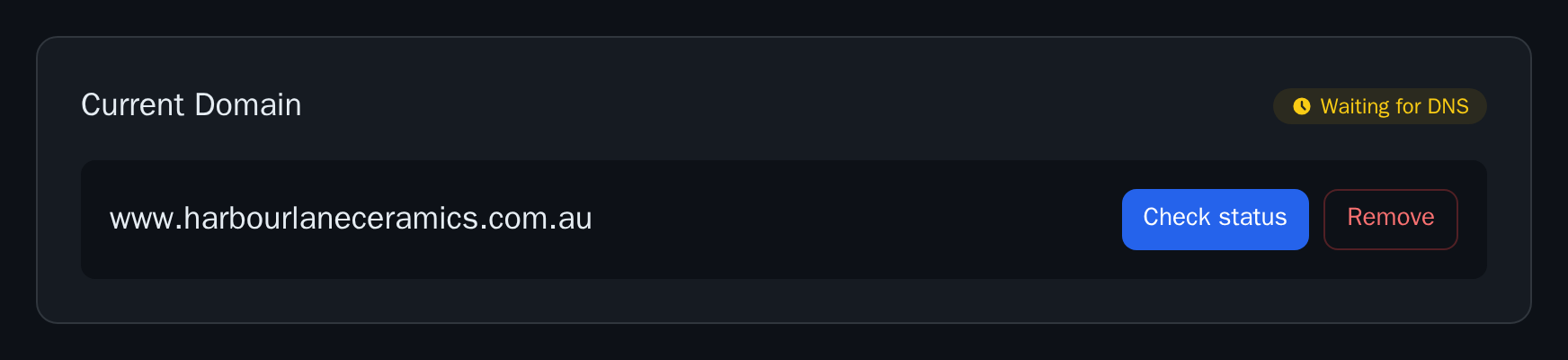
Go back to My Store → Domain. The badge in the corner of the Current Domain card is your progress bar. It moves through three states on the way to live.
Waiting for DNS. We are looking for your record and cannot see it yet. This is normal for the first few minutes — and usually only the first few minutes.
While you wait, here is the one piece of DNS folklore worth correcting. You have probably been told DNS takes 24 to 48 hours. That figure is about changing your nameservers — not about adding a record. Adding a record to nameservers that are already live normally works within minutes. The one thing that can slow it down is if you (or anyone else) tried the address before you created the record: some DNS servers remember a "no such address" answer for a while, typically an hour or so. It clears itself. Checking on your phone over mobile data is the quickest way to see past it.
DNS verified · issuing certificate. We can see your record. Your store is now being given its HTTPS certificate — the padlock in the browser bar. This part is automatic, free, and usually takes a couple of minutes.
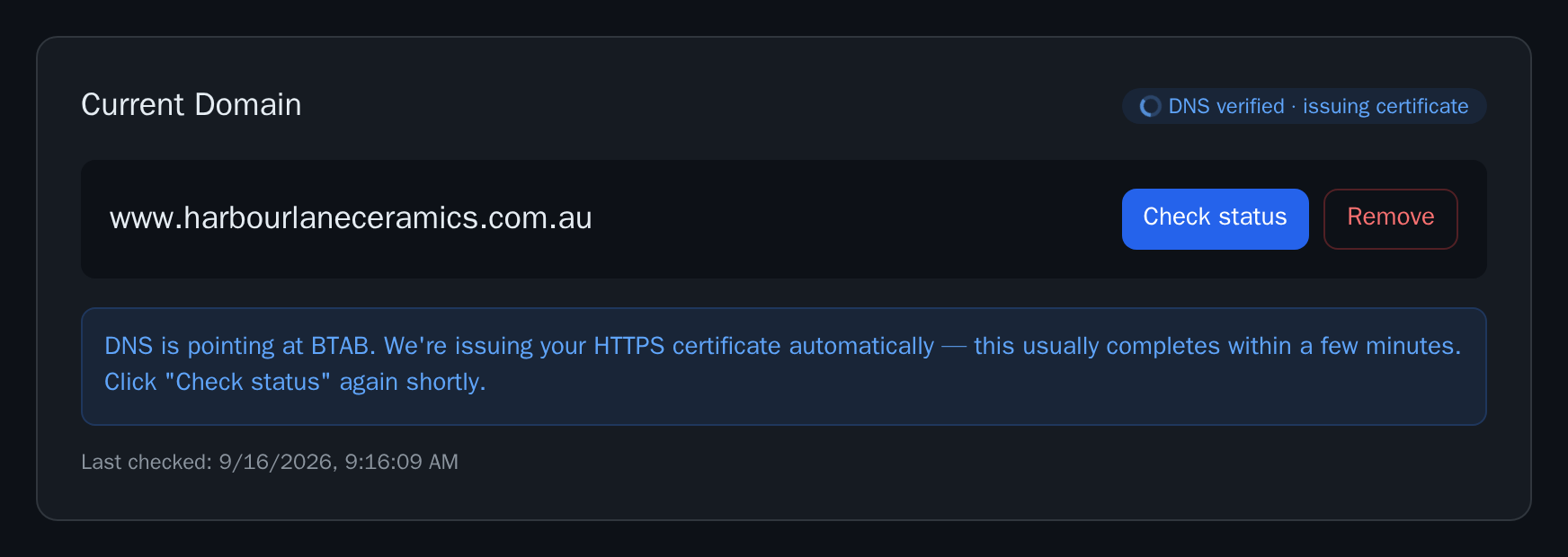
Live. Done.
We re-check every domain automatically every few minutes, so you can simply leave the page and come back. If you are impatient — and everyone is, at this point — the Check status button forces an immediate check.
You don't have to buy an SSL certificate, install one, or renew one. Ever. We issue it the moment your DNS points at us, and we renew it before it expires, for free, for as long as your domain points at us.
Step 5 — You're live
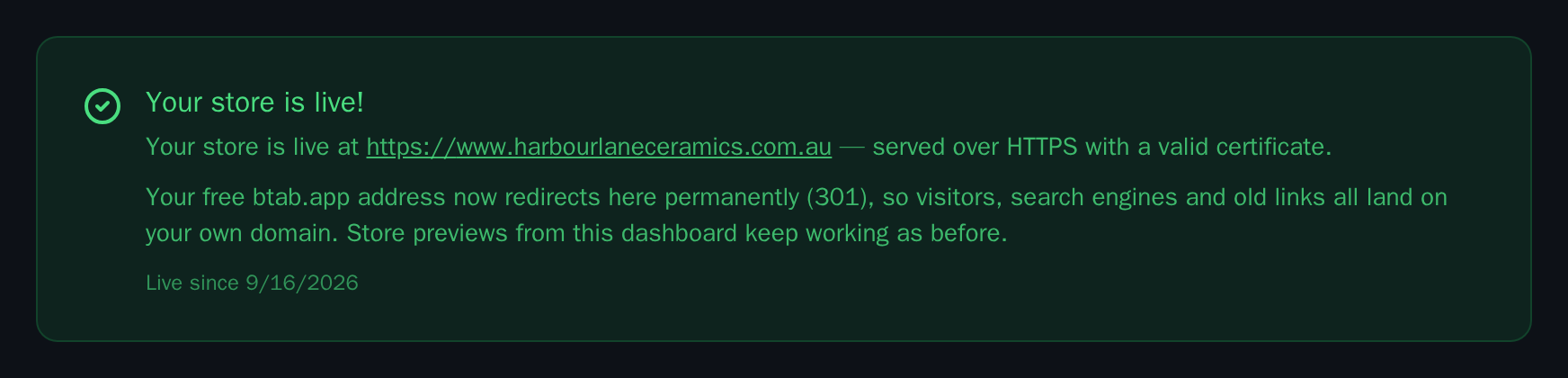
Click the link and check your own store. A few things have quietly changed:
- Your store answers on your domain, over HTTPS. The padlock is there; no browser warning.
- Your old
yourshop.btab.appaddress now redirects to your domain permanently. Anyone with the old link, and Google, gets sent to the new address and learns that the new one is the real one. You don't have to go and update old links — though you may as well update the ones you control. - Preview links from your dashboard keep working exactly as before.
You do not need to do anything else. If you want to see how your store performs in Google search, the Google Search Console panel further down that same page walks you through claiming your domain with your own Google account — but that is optional and separate from getting the store live.
When it doesn't work
If we can see your domain but it is not pointing at us, the badge turns red and tells you exactly what your domain currently resolves to:
That error message is worth reading closely — it names the addresses your domain is pointing at, which usually identifies the problem on sight. Here is the full list of things that actually go wrong, roughly in order of frequency.
The Host field has too much in it. You typed www.yourshop.com.au where the registrar wanted just www. Most registrars add the domain part for you, so typing it too produces www.yourshop.com.au.yourshop.com.au. Some registrars do want the full name — if yours shows the full domain back to you after saving, that is the normal, correct behaviour for that registrar.
The Value field has too much in it. The value is sites.btab.app — not https://sites.btab.app, not sites.btab.app/, and not your own domain. Paste exactly what the dashboard shows. A trailing dot (sites.btab.app.) is harmless and some registrars add it themselves.
You made the record for the wrong name. You told BTAB www.yourshop.com.au but created the record on @, or the other way around. The two have to match — the address you typed in Step 1 is the one we look up.
An old record is still there. Your domain probably came with a parking page or an old website, which means there is already an A record on @ or www. You cannot have two — the old one has to be edited or deleted, not merely joined by a new one. This is the single most common reason a correct-looking record has no effect.
Your domain is on Cloudflare and the cloud is orange. In Cloudflare, each record has a cloud icon. It must be grey (DNS only), not orange (Proxied). Orange hides your real record behind Cloudflare's own servers, which stops us seeing your domain and stops the certificate being issued. Click the cloud to toggle it grey.
Your domain's DNS isn't managed where you're editing it. If the nameservers were pointed somewhere else years ago — a web host, a designer, Cloudflare — then records you add at the registrar are being ignored. Your registrar will usually say "this domain is using external nameservers" somewhere on the DNS page. You need to make the change wherever the nameservers point.
It says live but I still see my old website. That is your own browser, holding the old page. Try a private/incognito window, or your phone on mobile data. Cached pages clear themselves within a day.
It has been an hour and nothing has changed. Check what the world sees rather than what you see: put your domain into a free public DNS checker — dnschecker.org and whatsmydns.net are the usual two — and look for the A record value shown on your Domain page, or for sites.btab.app if you used the CNAME. If the checker cannot see your record either, the record has not saved correctly at your registrar — go back and look at it. If the checker can see it but your own browser can't, that is the cached "no such address" answer described above, and it is not something you need to fix; press Check status and it will go through.
Questions we get asked
Do I have to pay BTAB for this? No. Custom domains, and the HTTPS certificate, are included.
Can I buy the domain through BTAB? Yes. Search for a name at btab.app/domains or under My Store → Domain. It's registered to you or your business (.au names need an ABN), and we connect it to your store automatically. Prefer to keep your domain at your own registrar? That works too, and this guide is for you. Either way, the domain is yours.
Will my email break? No, as long as you only touch the records described here. Email uses MX records, which we do not ask you to change. If you are replacing an existing A record on @, you are replacing a website record, not a mail one.
Can I use a subdomain like shop.mybusiness.com.au? Yes. Enter it in Step 1 and use the CNAME option, with shop as the host.
What happens to my .btab.app address? It redirects to your domain permanently. It does not break, and it does not compete with your domain in Google.
Can I change my mind? Yes. Remove on the Domain page takes the domain off your store, and your store carries on at its .btab.app address as if nothing happened. Your domain is untouched and you can point it anywhere else.
My domain is already used for my old website. Then pointing it at BTAB replaces that website with your BTAB store. Sort out which you want live before you change the record — or use a subdomain like shop. and run both.
That's the whole thing
One record at your registrar, and a wait. No certificate to buy, no token to paste, no ticket to raise. And nothing here is permanent — Remove puts your store back on its .btab.app address, and your domain remains yours to point anywhere.
If you want this as a one-page reference rather than a walkthrough, the short version lives in the help centre: How do I connect my own domain to my store?